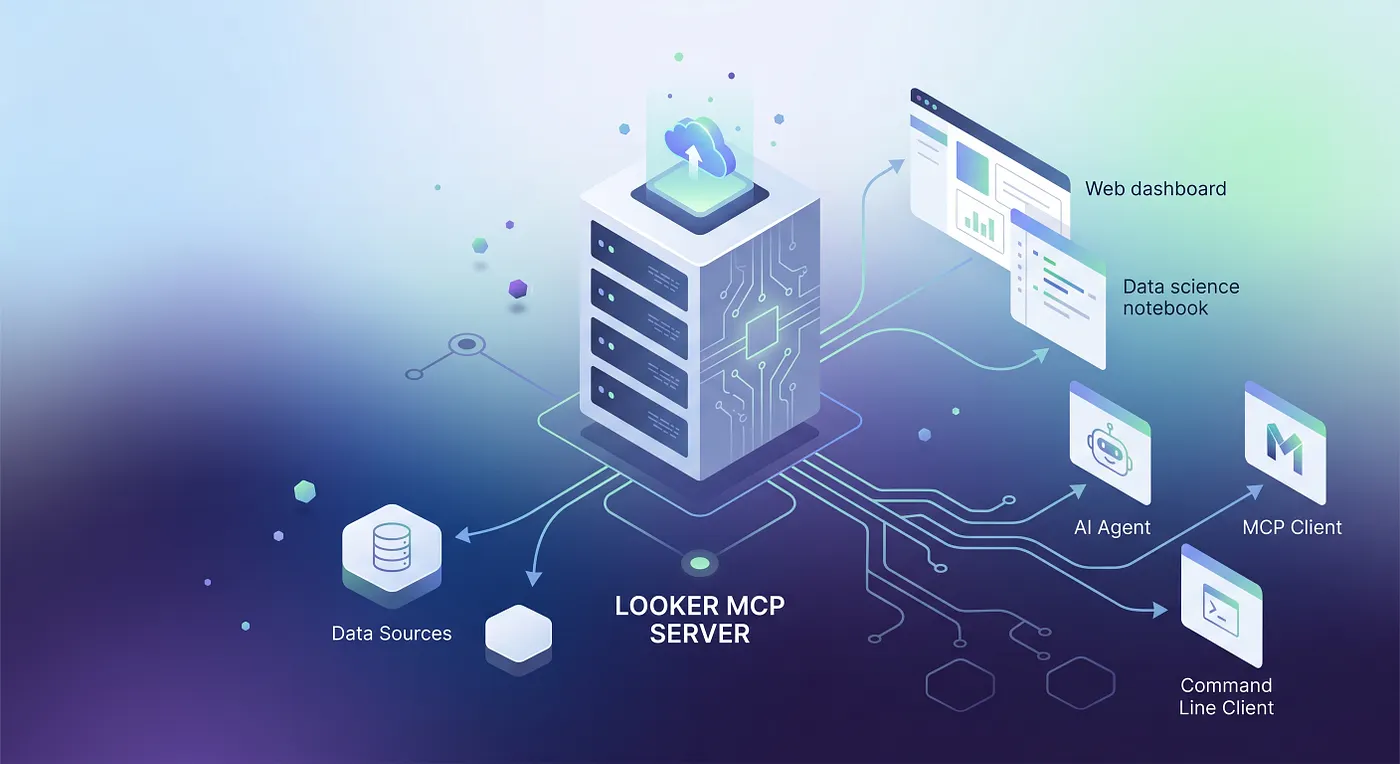
For engineering teams looking to unify LLM capabilities with live business intelligence, integrating Looker via the Model Context Protocol (MCP) is the bridge you need. I’ve found this setup is key to turning Gemini Enterprise (GE) into a functional agent that can fetch real-time metrics and audit instance health directly from Looker.
Note: At the time of writing both the Custom MCP Data Store in GE & Looker MCP are in Preview.
Why this matters for Engineering
In my experience, moving to a live data model solves the biggest headache with LLMs: stale data. By deploying the Looker MCP server, you get:
- Live Data Access: Gemini pulls metrics from Explores, Looks, or Dashboards instead of relying on training data.
- Health Monitoring: You can automate auditing for connection status and performance.
- Unstructured + Structured Data Insights: Looker’s MCP server will live alongside your other connectors like Google Drive and Gemini can orchestrate and synthesize information from both in a single prompt.
Phase 1: The OAuth Piece
The integration utilizes PKCE (Proof Key for Code Exchange), so you don’t need a client secret. This keeps things secure without the extra overhead.
- Go to the Looker API Explorer -> OAuth Registration endpoint for your instance.
- Set the
client_guidtolooker-mcp-ge. - Apply the following configuration body:
{
  "redirect_uri": "https://vertexaisearch.cloud.google.com/oauth-redirect",
  "display_name": "GE & Looker MCP",
  "description": "OAuth Client for use in GE",
  "enabled": true
}
- Optional: Pre-activate the OAuth App User by providing your Looker ID at the Activation URL to ensure the
client_guidis correctly associated. This will pre-approve the consent flow for the registered user, however this is not required.
Phase 2: Data Store Config
Once OAuth is set, you configure the data store in GE. You’ll need your instance URI and the specific auth parameters for PKCE support. I’ve found that even though GE asks for a client secret, you can just set it to none since PKCE doesn’t use it.
Configuration Variables
Use the following parameters, replacing <looker-instance> with your specific domain:
- Instance URI:
https://<looker-instance>/mcp - Auth URI:
https://<looker-instance>/auth - Auth Params:
&response_type=code&code_challenge_method=S256 - Token URI:
https://<looker-instance>/api/token - Client ID:
looker-mcp-ge - Client Secret: Set to
none(Required field by GE, though unused in PKCE) - Scopes:
cors_api - PKCE Support:
true
Phase 3: Agent Tooling
This is where the real utility happens. You need to define the operational boundaries.
Agent Instructions
I’ve included sample description and instructions below, all you need to know is that these help Gemini understand what your server does and when and how to use it.
MCP Server Description
Looker Agent with API access to various aspects of Looker. Primarily used to fetch data and run dashboards from Looker.
MCP Server Agent Instructions
Use this server exclusively to interact with the Looker instance for monitoring health, retrieving data & lookml, and listing dashboards & looks.
Invoke the Looker MCP server for the following request categories:
- Instance Health Checks: Auditing connection status, uptime, performance metrics, or system errors.
- Analytics Queries & Data Retrieval: Fetching live business metrics from Explores, Looks, or Dashboards.
Strict Constraints:
- No Local Estimation: Do not guess. Always fetch real-time data via MCP tools.
- Fallback Behavior: Inform the user of connectivity failures immediately.
Enabling Actions
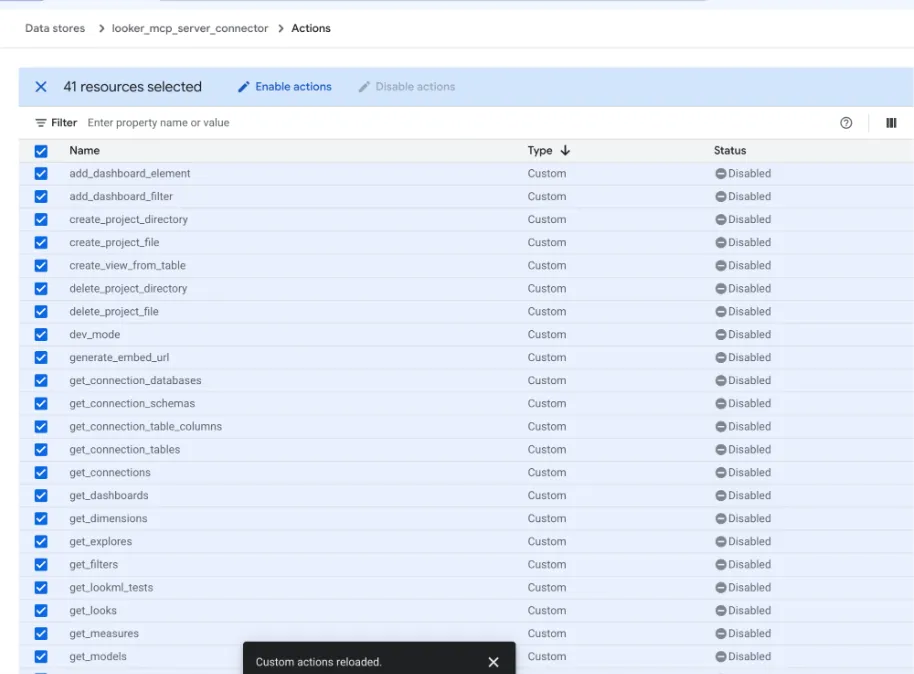
After defining instructions, navigate to the Actions tab in the Looker Custom MCP Data Store. You must manually toggle the specific tools (e.g., get_dashboards, run_inline_query, get_lookml_tests) you want Gemini to access. This step is required for GE to discover the tools as executable functions rather than standard indexed data.
Finalization
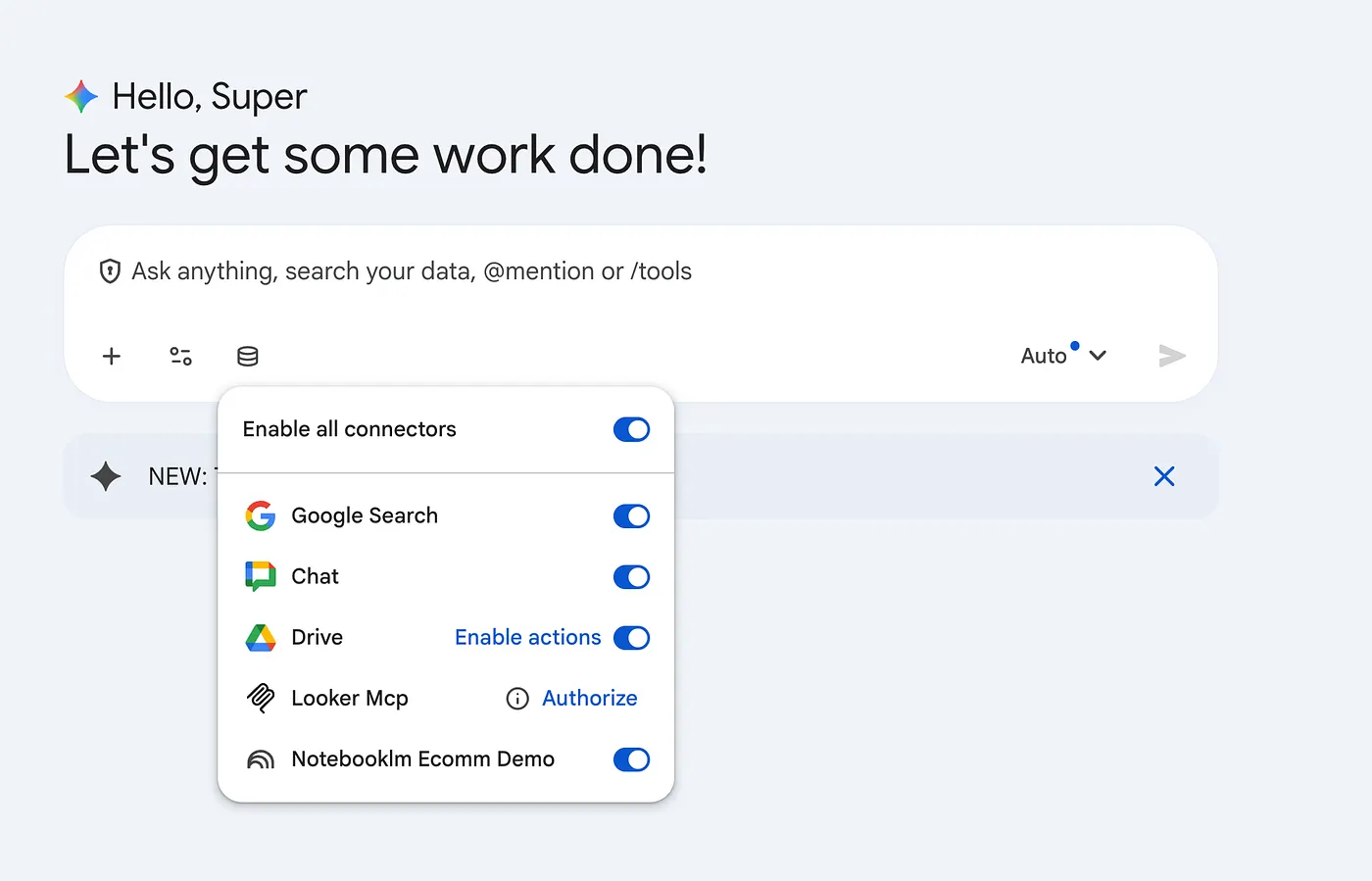
Authorize the connector in the Gemini Enterprise console. This binds the OAuth flow and you’re good to go!