Overview
Do your Looker users struggle to find the right dashboards? In large organizations with hundreds of dashboards, traditional keyword searches often fall short, leaving users frustrated and wasting time.
This article presents a practical “zero-to-one” solution: a Looker dashboard recommendation engine powered by BigQuery ML (BQML) embeddings.
In this tutorial, we will implement a “Dense Search” strategy. We will take a “naive” approach by feeding the full dashboard JSON (titles, descriptions, and queries) into an embedding model. This is excellent for capturing the semantic meaning of a dashboard — allowing users to find “Sales” dashboards even if they search for “Revenue.”
However, we will also discuss why — for a production-grade system — you should eventually upgrade this to a Hybrid Search (combining this Dense model with Keyword search) to capture specific technical metadata like column names.
Building Your Looker Dashboard Recommendation Engine: A High-Level Overview
The Looker Dashboard Recommendation Engine provides a powerful way to improve content discovery. It’s based on a straightforward process involving Looker, BigQuery, and BQML. Here’s a summary of the key steps:
- Gather Target Content: Identify the Looker folders containing the dashboards you want to make searchable.
- Retrieve Dashboard IDs: Use Looker’s search_dashboards() API endpoint to retrieve a list of Dashboard IDs.
- Extract and Store Metadata: For each dashboard, extract relevant metadata. Note: We will serialize the entire JSON object to generate a comprehensive “dense” embedding.
- Generate Embeddings with BQML: Use BQML to generate vector embeddings from the dashboard metadata.
- Implement Vector Search: Craft a simple SQL query to perform a vector search against the embeddings table.
- Integrate with Looker: Connect the SQL query to a LookML model or an LLM-powered chat interface. Check out our Embedded Analytics App Template demo and the gif below to get a preview of this in action!
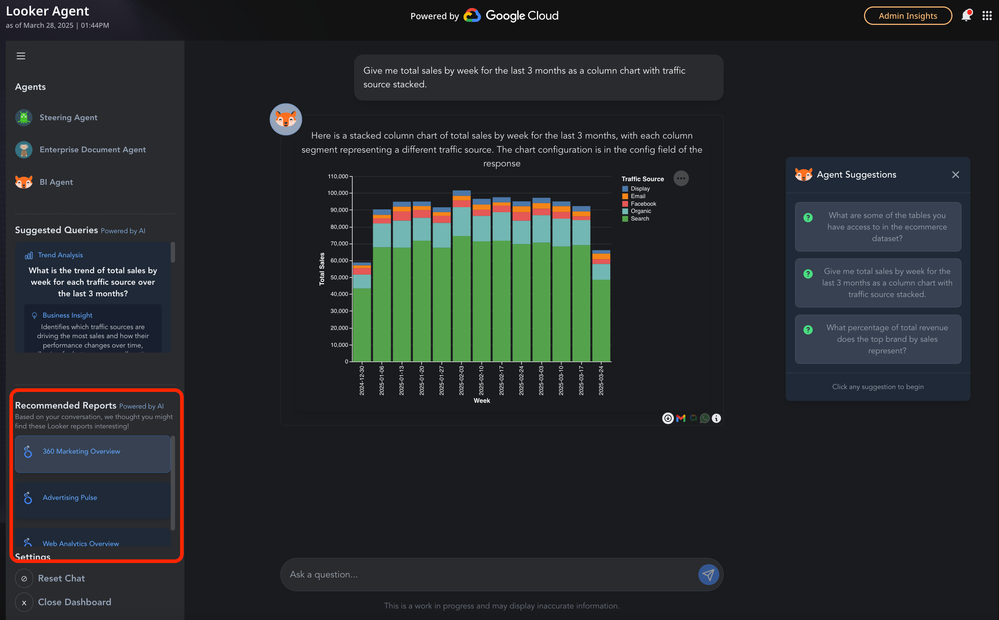
With these steps, your users can search for dashboards using natural language, finding relevant content based on meaning, not just keywords.
Continue to the tutorial for a detailed, step-by-step implementation guide.
1.Prerequisites & Setup
Now to get started with the tutorial, you’ll need a few things:
- A Colab notebook
- A Looker instance
- Access/credentials to a GCP Project with the BigQuery API turned on
- GCP IAM for creating a dataset, tables and creating & executing a BigQuery Remote Connection leverage resources on Vertex
Once those are secured, start by filling in the required variables (you can change the defaults if you’d like):
PROJECT_ID = "" #@param {type: "string"} Replace with your Google Cloud project ID
DATASET_ID = "" #@param {type: "string"} Replace with your BigQuery dataset ID
TABLE_ID = "dashboard_metadata" #@param {type: "string"} Replace with your BigQuery table ID that will store the dashboard metadata
EMBEDDINGS_TABLE_ID = "dashboard_metadata_embeddings" #@param {type: "string"} Replace with your BigQuery table ID that will store the dashboard metadata embeddings
REGION = "us" #@param {type: "string"} REgion for Remote Connection deployment
BQML_REMOTE_CONNECTION_NAME = "dashboard_recommendation_system" #@param {type: "string"} BQML Remote Connection
MODEL_NAME = "dashboard_embeddings" #@param {type: "string"} BQML embeddings remote model name
Assuming you are following along in a Colab Environment, you’ll need to authenticate that notebook to your GCP project:
from google.colab import auth
auth.authenticate_user()
!gcloud auth login
Instantiate the BigQuery client
import google.cloud.bigquery as bigquery
client = bigquery.Client(project=PROJECT_ID)
Instantiate the Looker SDK
- You’ll need a
looker.inifile mounted to your Colab Notebook. Please see Looker’s API documentation on the format required here. - You can use config headers to delineate between environments if you plan on running this for multiple Looker instances with different credentials.
import looker_sdk
sdk = looker_sdk.init40('./looker.ini')
2.Search Looker Folders & Save Dashboard ID’s
Now that the Looker SDK is instantiated, let’s find our content. Our first step is to identify where and what. Where do we want to search for content, in a specific folder, across all folders, across multiple instances. What do we want returned, only dashboards, only looks, both? In this tutorial we are focused on two search criteria: folders that exist in the parent folder, and dashboards that live in that folder.
To note you’ll want to adjust the search filters if the criteria doesn’t match your own. Please refer to Looker’s API documentation on this. Additionally, we are running these calls as a single user on the Looker instance(s). Users likely don’t have full access permissions to every single dashboard on an instance. You’ll need to modify this to incorporate additional workflows like fetching content metadata accesses if the recommendation engine needs user specific access controls.
folders = sdk.search_folders(parent_id=1,fields="id,name,dashboards")

This will return us a list of folders with the given fields specified. Next, to search for dashboard content in each:

folder_ids = ",".join(map(lambda folder: folder["id"], folders))

dashboards = sdk.search_dashboards(
 folder_id=folder_ids,
)
3.Extract Dashboard Metadata for Embeddings
To make our recommendation engine useful, we need to extract descriptive fields.
The “Naive” Approach: In this step, we are taking a “kitchen sink” approach. We will extract titles, descriptions, query fields, and filters, and bundle them into a single JSON object. This is a dense embedding strategy. It relies on the AI model to understand the relationship between all these fields implicitly.
import json
import concurrent.futures # For parallel processing
from google.cloud import bigquery

def extract_relevant_metadata(dashboard_json):
 """
 Extracts relevant metadata from a Looker dashboard JSON object for generating embeddings.

    Args:
        dashboard_json (dict): A dictionary representing the Looker dashboard JSON.

    Returns:
        dict: A dictionary containing the extracted metadata, suitable for embedding.
    """

    extracted_data = {
        "dashboard_title": dashboard_json.get("title", ""),
        "dashboard_description": dashboard_json.get("description", ""),
        "dashboard_id": dashboard_json.get("id", ""),
        "elements": []
    }

    for element in dashboard_json.get("dashboard_elements", []):
        element_data = {
            "element_title": element.get("title", ""),
            "element_type": element.get("type", ""),
            "body_text": element.get("body_text", ""),
            "query_fields": [],
            "query_filters": [],
            "query_model": None,
            "query_view": None,
            "listen_filters": []
        }

        if element.get("query"):
            query = element["query"]
            element_data["query_fields"] = query.get("fields", [])

            # Extract model and view information
            element_data["query_model"] = query.get("model", None)
            element_data["query_view"] = query.get("view", None)

            # Extract filter information
            filters = query.get("filters", {})
            element_data["query_filters"] = [f"{field}: {value}" for field, value in filters.items()] if filters else []

        if element.get("result_maker"):
            result_maker = element["result_maker"]
            if result_maker.get("filterables"):
                filterables = result_maker.get("filterables")
                for filterable in filterables:
                    if filterable.get("listen"):
                        listens = filterable.get("listen")
                        for listen in listens:
                            element_data["listen_filters"].append(listen.get("dashboard_filter_name", None))

        extracted_data["elements"].append(element_data)

    return extracted_data

def process_dashboard(dashboard_json):
 """Processes a single dashboard JSON and extracts metadata.

    This function is designed to be used as a worker in a parallel processing pool.
    """
    try:
        return extract_relevant_metadata(dashboard_json)  # Return as a Python dictionary
    except Exception as e:
        print(f"Error processing dashboard: {e}")
        return None  # Or handle the error as needed

def insert_into_bigquery(data_list, project_id, dataset_id, table_id):
 """Inserts a list of extracted metadata dictionaries into a BigQuery table."""

    try:

      client = bigquery.Client(project=project_id)
      table_ref = client.dataset(dataset_id).table(table_id)

      # Define the schema for the table (one column of type JSON)
      schema = [
          bigquery.SchemaField("metadata", bigquery.enums.StandardSqlTypeNames.JSON),
      ]

      # Prepare the rows to insert
      rows_to_insert = [{"metadata": data} for data in data_list]  # Wrap in a dict with column name

      errors = client.insert_rows(table_ref, rows_to_insert, selected_fields=schema)  # Make an API request, pass the schema

      if errors:
          print(f"Encountered errors while inserting rows: {errors}")
      else:
          print(f"Successfully inserted {len(data_list)} rows into {project_id}.{dataset_id}.{table_id}")
    except Exception as e:
        print(f"Error inserting into BigQuery: {e}")

def main():
 """Main function to process multiple dashboards in parallel and insert into BigQuery."""

    # --- Parallel Processing ---
    with concurrent.futures.ThreadPoolExecutor(max_workers=10) as executor:  # Adjust max_workers as needed
        results = list(executor.map(process_dashboard, dashboards))

    # Filter out any None results (due to errors in processing)
    extracted_metadata_list = [r for r in results if r is not None]

    # --- Insert into BigQuery ---
    insert_into_bigquery(extracted_metadata_list, PROJECT_ID, DATASET_ID, TABLE_ID)
The majority of this code is focused on parsing the dashboard metadata objects and extracting the information we want to be included in the dashboard embedding. We use some parallel processing techniques in case the volume of dashboards is very high and finally insert this data into the BigQuery table specified.
To note, we only generate a single column in this table, “metadata” which is a json object. You may want to include things like instance name, content access user id’s, etc. if you want to support multiple instances or existing access controls.
main()
Here we run our function and should be able to preview our BigQuery table.
4.Create BigQuery Remote Connection & BQML Embeddings Model
To create our embeddings from SQL in BigQuery, we need to first establish a BigQuery Remote Connection and generate a BQML Embeddings Model. If you aren’t familiar you can think of Remote Connections in BigQuery as a way for BigQuery, via SQL, to access and make requests to external services like Vertex OR the Google Maps Platform API’s for example.
!bq mk - connection - location=REGION - project_id=PROJECT_ID \

- connection_type=BQML_REMOTE_CONNECTION_NAME
Here we are using the BQ command line utility to make the request to create the connection. Now run the below command to return the Remote Connection Service Account.
!bq show - connection PROJECT_ID.REGION.BQML_REMOTE_CONNECTION_NAME
And grant that service account the “Vertex AI User” IAM role to your GCP Project.
Now once that is done. We can create the BQML Embeddings Model. Here we are using the “text-embedding-004” version. But this could be a custom Embeddings model you have deployed on Vertex in which case, please supply the resource path.
bqml_model_creation_query = f'''
CREATE OR REPLACE MODEL `{PROJECT_ID}.{DATASET_ID}.{MODEL_NAME}`
REMOTE WITH CONNECTION `{REGION}.{BQML_REMOTE_CONNECTION_NAME}`
OPTIONS(ENDPOINT = 'text-embedding-004')
'''
model_creation_job = client.query(bqml_model_creation_query) # API request
model_creation_job.result() # Waits for query to finish
5.Create the Embeddings Table & Optionally Deploy Vector Search Index
We now generate embeddings for our dashboard metadata.
Because we are using the naive dense approach, we use TO_JSON_STRING(metadata) to turn the entire metadata object into a single string of text. The model will read this string and create a vector based on the overall context.
In this tutorial we will be doing this process one time, but you may need to schedule this query if there will be a constant stream of new reports getting extracted and updated in the underlying tables.
embeddings_creation_query = f'''
CREATE OR REPLACE TABLE `{PROJECT_ID}.{DATASET_ID}.{EMBEDDINGS_TABLE_ID}` AS (
SELECT \*
FROM
ML.GENERATE_EMBEDDING(
MODEL `{PROJECT_ID}.{DATASET_ID}.{MODEL_NAME}`,
(SELECT TO_JSON_STRING(metadata) as content FROM `{PROJECT_ID}.{DATASET_ID}.{TABLE_ID}`),
STRUCT(TRUE AS flatten_json_output, 'SEMANTIC_SIMILARITY' as task_type)
)
);
'''
embeddings_creation_job = client.query(embeddings_creation_query) # API request
embeddings_creation_job.result() # Waits for query to finish
One thing you may note here is that the “task_type” we use is the “SEMANTIC_SIMILARITY” type. You can read more about each task type here and evaluate which makes the most sense for your given use case.
Optionally, if the output embeddings table is greater than 5000 rows we may want to generate a Vector Index. I am going to assume that most of us Looker instance Admins don’t maintain instances with over 5000 production dashboards, but if you are one such rare instance owner, run the below and optimize your Vector Search queries with an index.
vector_index_creation_query = f'''
CREATE VECTOR INDEX search_index ON `{PROJECT_ID}.{DATASET_ID}.{EMBEDDINGS_TABLE_ID}`(ml_generate_embedding_result)
OPTIONS(distance_type='COSINE', index_type='IVF', ivf_options='{"num_lists": 1000}');
'''
vector_index_creation_job = client.query(vector_index_creation_query) # API request
vector_index_creation_job.result() # Waits for query to finish
Try an Example Query!
Now that our Embeddings table is created, let’s leverage BQML’s Vector Search function for a test search query.
PROMPT = 'total sales by age tier' # @param {type: "string"} user prompt
num_matches = 5 # @param {type: "integer"} number of matches to return

recommendation_query = f"""SELECT base.content
FROM VECTOR_SEARCH(
TABLE `{PROJECT_ID}.{DATASET_ID}.{EMBEDDINGS_TABLE_ID}`,
'ml_generate_embedding_result',
(
SELECT ml_generate_embedding_result, content AS query
FROM ML.GENERATE_EMBEDDING(
MODEL `{PROJECT_ID}.{DATASET_ID}.{MODEL_NAME}`,
(SELECT '{PROMPT}' AS content)
)
),
top_k => {num_matches}, options => '{"fraction_lists_to_search": 1.0}'
)"""

query_job = client.query(recommendation_query) # API request
rows = query_job.result() # Waits for query to finish

dashboards=[]
for row in rows:
 dashboards.append(row.get('content'))
 print("Matched Dashboards: ",dashboards)
We have 2 variables here, the prompt for our search and the number of matches to return and that’s it. The rest is done in a few lines of SQL, directly in the database!
Beyond the Tutorial: Going to Production with Hybrid Search
The method outlined above uses Dense Search, which is fantastic for understanding intent (e.g., knowing that “Revenue” is similar to “Sales”). However, in a production environment with complex technical metadata, you may encounter limitations:
- Technical Specificity: A dense model might struggle to distinguish between table_v1 and table_v2 if the rest of the dashboard context is identical.
- Exact Matching: Sometimes a user wants to find a dashboard that contains a specific field name exactly, regardless of semantic meaning.
The Solution: Hybrid Search
For a robust production recommender, we recommend upgrading to a Hybrid Search architecture. This involves:
- Dense Vector: The implementation we built in this tutorial (captures meaning).
- Sparse Index: Using BigQuery’s SEARCH index on your metadata (captures exact keywords).
- Reciprocal Rank Fusion (RRF): A SQL technique to combine results from both the Vector Search and the Keyword Search.
By combining these two, you ensure that your users get the best of both worlds: the “smart” understanding of AI and the precision of keyword matching.